Binance Trading Bot: Complete Guide With TradingView & Sferica
Published on: June 15, 2026
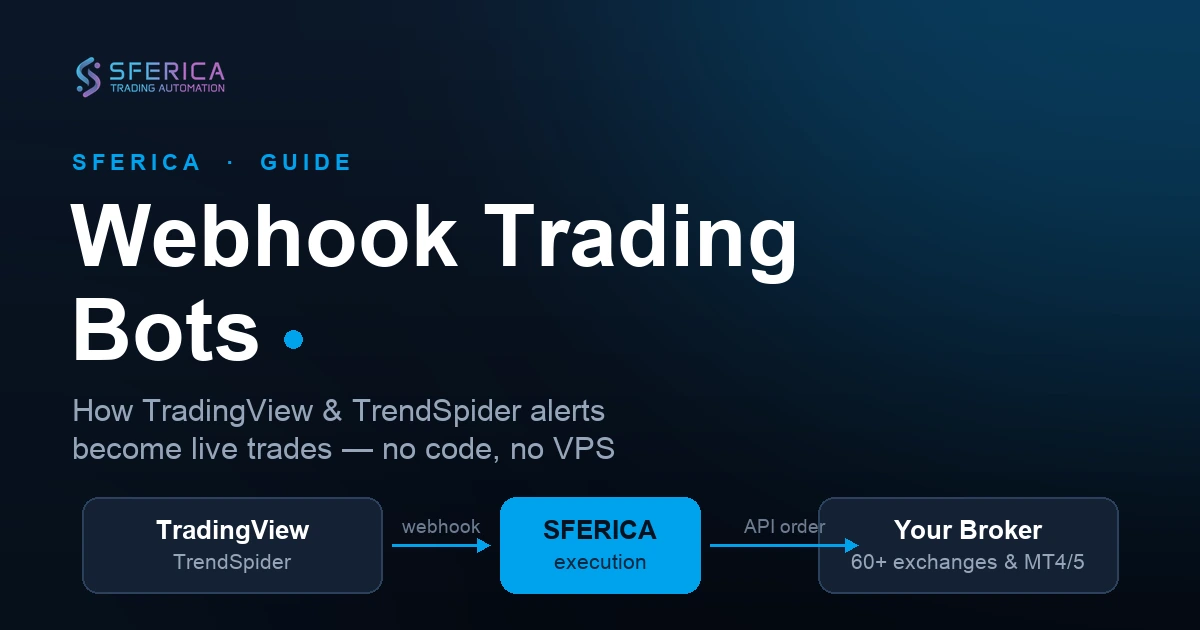
A Binance trading bot built with Sferica routes TradingView or TrendSpider alerts to your Binance account through a no-code connector — no Python, no VPS, no custom infrastructure.
Four connector profiles cover Binance Spot, USD-M Futures (USDT-margined perpetuals), COIN-M Futures (coin-margined perpetuals), and Binance.US. Pick the one that matches your account; you can run several in parallel from one Sferica login.
Trade-only API keys with withdrawal disabled — your funds never leave Binance. Sferica only ever signs orders on your behalf, and you can revoke the key inside Binance in seconds.
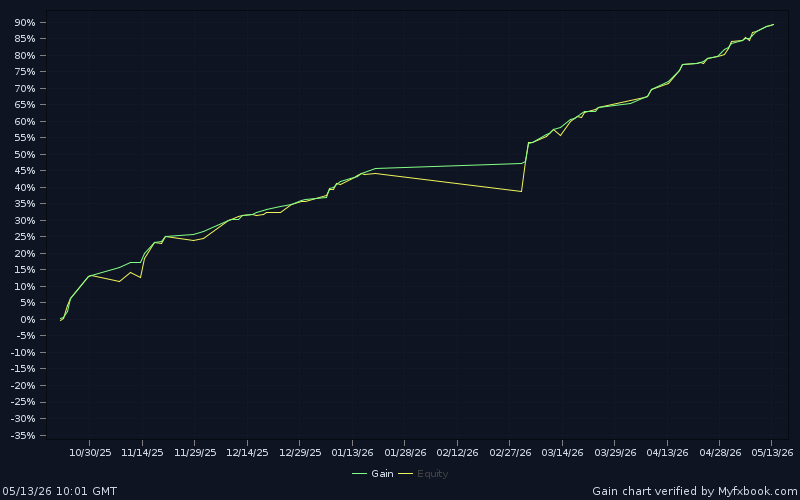
Every strategy on the Sferica leaderboard ships with live-tracked performance, so the historical numbers you see match what is running on real Binance accounts right now — not a backtest highlight reel.
Start with the 14-day Sferica free trial. Connect Binance, activate a strategy, and watch it execute on a small test position before you commit to a paid plan.
Building a Binance trading bot used to mean writing Python against the Binance REST and WebSocket APIs, renting a VPS to keep it online, handling reconnect logic when a socket dropped, and engineering position-sizing and risk controls from scratch. On futures you also had to juggle leverage, isolated-versus-cross margin, and the differences between USD-M and COIN-M contracts. That ladder excluded most traders from automating anything more sophisticated than a bare TradingView webhook.
Sferica removes every rung. If you can configure a TradingView alert, you can run an algorithmic Binance bot — Spot, USD-M Futures, COIN-M Futures, or Binance.US — with the same strategies that already trade live on the Sferica leaderboard. This guide walks through the full setup end-to-end, the risk controls that matter most on Binance, and the difference between a Sferica-driven bot and Binance's own native bots.
What is a Binance trading bot
A Binance trading bot is a program that opens, modifies, and closes orders on your Binance account automatically, driven by rules instead of human discretion. The rules live in a trading strategy — entry conditions, exit conditions, and risk parameters. When the strategy fires a signal, the bot translates that signal into a real Binance order and submits it through the Binance API.
In the Sferica setup, the bot is split across three components, each doing one job well:
- TradingView (or TrendSpider) hosts the strategy logic. You either author the strategy yourself in Pine Script, or you pick one from Sferica's curated leaderboard. TradingView's alert system fires a webhook every time the strategy's conditions are met on the live chart.
- Sferica receives the alert, applies your account-level risk rules (max position size, max drawdown, leverage caps), and converts the signal into a Binance-specific order payload — Spot or one of the futures products, with the right margin mode and leverage. Sferica also tracks every trade so the live-tracked performance on the leaderboard reflects what is actually executing.
- Binance receives the order through its API and executes against the order book. The fill comes back through the same API and Sferica updates its records.
The full round trip — from alert fire to filled Binance order — usually completes in under two seconds.
How a Binance bot works with TradingView and Sferica
Here is the signal path, end to end.
1. TradingView creates the signal
Your Pine Script strategy runs on a TradingView chart in real time. When the strategy's logic says "enter long", "close position", or anything in between, TradingView fires an alert. The alert payload contains the strategy identifier, the action ("buy" / "sell" / "close"), and any custom variables embedded in the alert message — target size, stop-loss price, leverage if applicable.
2. Sferica receives and processes the alert
The alert routes to a Sferica webhook endpoint. Sferica decodes the payload, looks up which Binance connector profile is associated with the strategy (Spot, USD-M, COIN-M, or Binance.US), checks that the strategy is still active and within its risk envelope, and constructs the Binance order request. If the alert violates a risk rule — for example, you already have a position open and the strategy is configured one-trade-at-a-time — Sferica rejects the alert silently and logs the reason on your dashboard.
3. Binance receives the order through API
Sferica signs the order with your Binance API key and submits it through Binance's REST API. The order type — market, limit, or stop — comes from your strategy configuration. For futures positions, leverage and margin mode are applied as part of the same call. Binance returns a fill confirmation (or a rejection), Sferica records it, and the leaderboard updates with the new trade.
This three-stage pipeline is identical whether you trade Bitcoin spot, an ETH-USDT perpetual, or BNB on Binance.US — only the connector profile in step 2 changes.
Why Sferica + Binance
Binance is the deepest-liquidity crypto venue in the world, with the tightest spreads on majors and four distinct products under one roof: Spot, USD-M perpetuals, COIN-M perpetuals, and the separately operated Binance.US for American residents. The catch is that Binance's own automation tools are templates — Spot Grid, Futures Grid, DCA — that cannot be driven by an external signal or a custom strategy.
Sferica plus Binance closes that gap:
- All four Binance products from one login. Spot, USD-M, COIN-M, and Binance.US each get their own connector profile and strategy queue inside a single Sferica dashboard. Run a trend strategy on USD-M and a mean-reversion strategy on Spot without them touching each other's capital.
- Any strategy, not a template. Bring your own Pine Script, or deploy one from the Sferica leaderboard. You can read the logic, backtest it, and watch it run — none of which Binance's native bots allow.
- Live-tracked, transparent performance. Every strategy on the leaderboard ships with a real-time history of fills on real accounts. The numbers are trades that actually executed, not a curated backtest.
- No infrastructure to maintain. Sferica's webhooks, Sferica's servers, Sferica's monitoring. Set up the API key once and stop thinking about uptime, reconnects, or rate limits.
- Full connector specs are public. The exact order types, margin handling, and supported markets for each profile live on the Sferica × Binance integration page.
Prerequisites: what you need before starting
Before you start the setup, gather the following:
- A Binance account with API access. If you do not have one yet, open one through Sferica's Binance referral signup. Creating an API key requires completed KYC identity verification and a verified address — Binance will not issue a key without them, so finish verification first (it can take from a few minutes to a few hours). US residents should sign up on binance.us instead, which is a separate platform with its own connector.
- A TradingView account. The free plan works for the initial test. To run alerts on intraday timeframes you will need at least the Essential plan, since the free plan caps the number of simultaneous active alerts.
- Funded Binance balance. Start small — $100 to $500 is enough to validate the pipeline end-to-end before you scale. For futures, fund the futures wallet directly (transfer from Spot to USD-M or COIN-M inside Binance).
- A Sferica account. The 14-day free trial covers the full setup and the first few days of live trading.
You do not need: Python, a VPS, server admin skills, a deep understanding of Binance's API, or any custom infrastructure.
Step-by-step: build your Binance trading bot in 8 steps
Plan on 10 to 15 minutes for the first connector. Subsequent strategies on the same Binance account take under two minutes each.
Step 1 — Open or sign in to your Binance account
Goal: have an active, verified Binance account ready for an API key. Existing accounts work as-is; new accounts go through Sferica's referral so the partnership attribution is recognised end-to-end.
If this is a new account, sign up through the Sferica × Binance referral link and complete identity verification. If you already have a Binance account, log in normally. US residents use Binance.US — the steps below are the same shape, the API panel just lives on a different domain.
Step 2 — Decide which Binance product to automate
Goal: pick the product(s) your bot will trade. Start with Spot if this is your first algo bot, add futures later once you are comfortable with the pipeline.
Binance exposes four products and each maps to its own Sferica connector: Spot, USD-M Futures (USDT-margined perpetuals), COIN-M Futures (coin-margined perpetuals), and Binance.US. They share the same API-key panel on Binance global (Binance.US has its own), but you enable different permissions per product. Most traders start with Spot, validate the pipeline on a small position, and add a futures connector once they are comfortable.
Step 3 — Create a trading-only API key
Goal: leave Binance with an API key + secret in hand, scoped to trading only — no withdrawal permission, no admin reach.
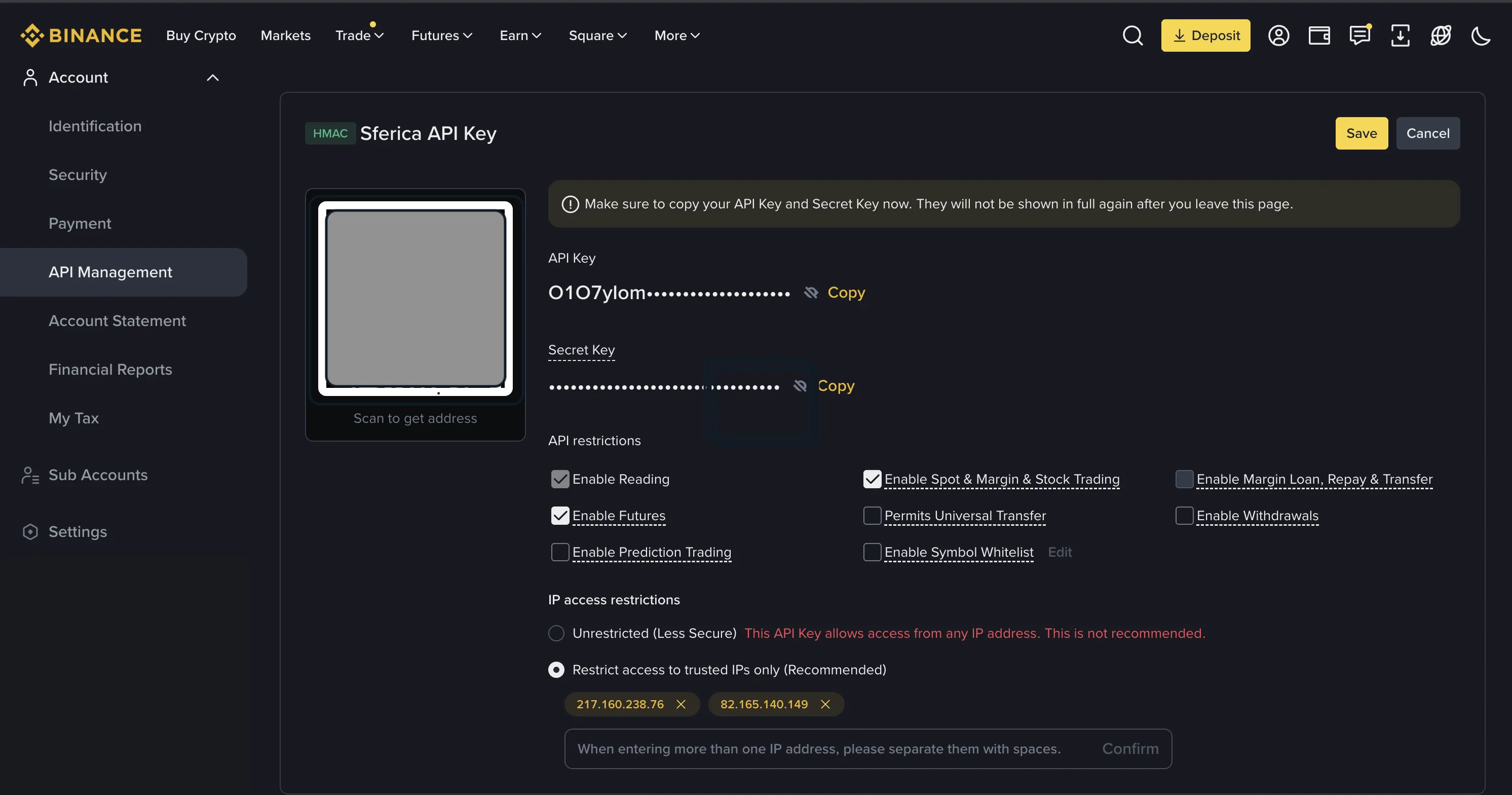 Binance's API Management screen. Enable the trading permissions you need — Spot & Margin Trading and/or Futures — and leave Enable Withdrawals unchecked. Sferica never needs withdrawal access.
- Open Binance API Management (Account → API Management) and click "Create API". Binance requires completed KYC and a verified address before it will issue a key. Name it something descriptive like "Sferica Connector".
- Binance prompts you to verify with 2FA and email. Complete the verification.
- In the permissions panel, enable "Enable Spot & Margin Trading" and/or "Enable Futures" depending on which market you plan to automate. Leave "Enable Withdrawals" disabled. Sferica never needs it, and disabling it caps the blast radius if the key is ever compromised.
- Optionally restrict the key by IP address. If Sferica publishes its outbound IPs in your dashboard, paste them into Binance's IP whitelist — Binance will then reject any call from a different IP.
- Copy the API Key and the Secret Key to a temporary safe place. The Secret is shown only once; if you lose it you delete the key and create a new one.
Step 4 — Connect Binance to Sferica
Goal: paste your Binance credentials into Sferica and get back a pointer string that links TradingView alerts to your Binance account.
From the dashboard, open TradingView Connector Configurations and click "Add Connector". The Exchange dropdown lists the Binance profiles as separate options:
 The Exchange selector in Sferica's connector wizard. Binance (Spot), Binance USD-M, Binance COIN-M, and Binance US are separate profiles — but every one of them takes the same two credentials.
- Binance — Spot trading (BTC/USDT, ETH/USDT, and all other spot pairs).
- Binance USD-M — USDT-margined perpetual futures.
- Binance COIN-M — coin-margined perpetual futures (BTC-margined, ETH-margined, and so on).
- Binance US — the Binance.US platform for US residents.
Whichever profile you choose, the connector form asks for the same two fields — API Key and API Secret. Binance keys carry no passphrase, so there is nothing else to paste.
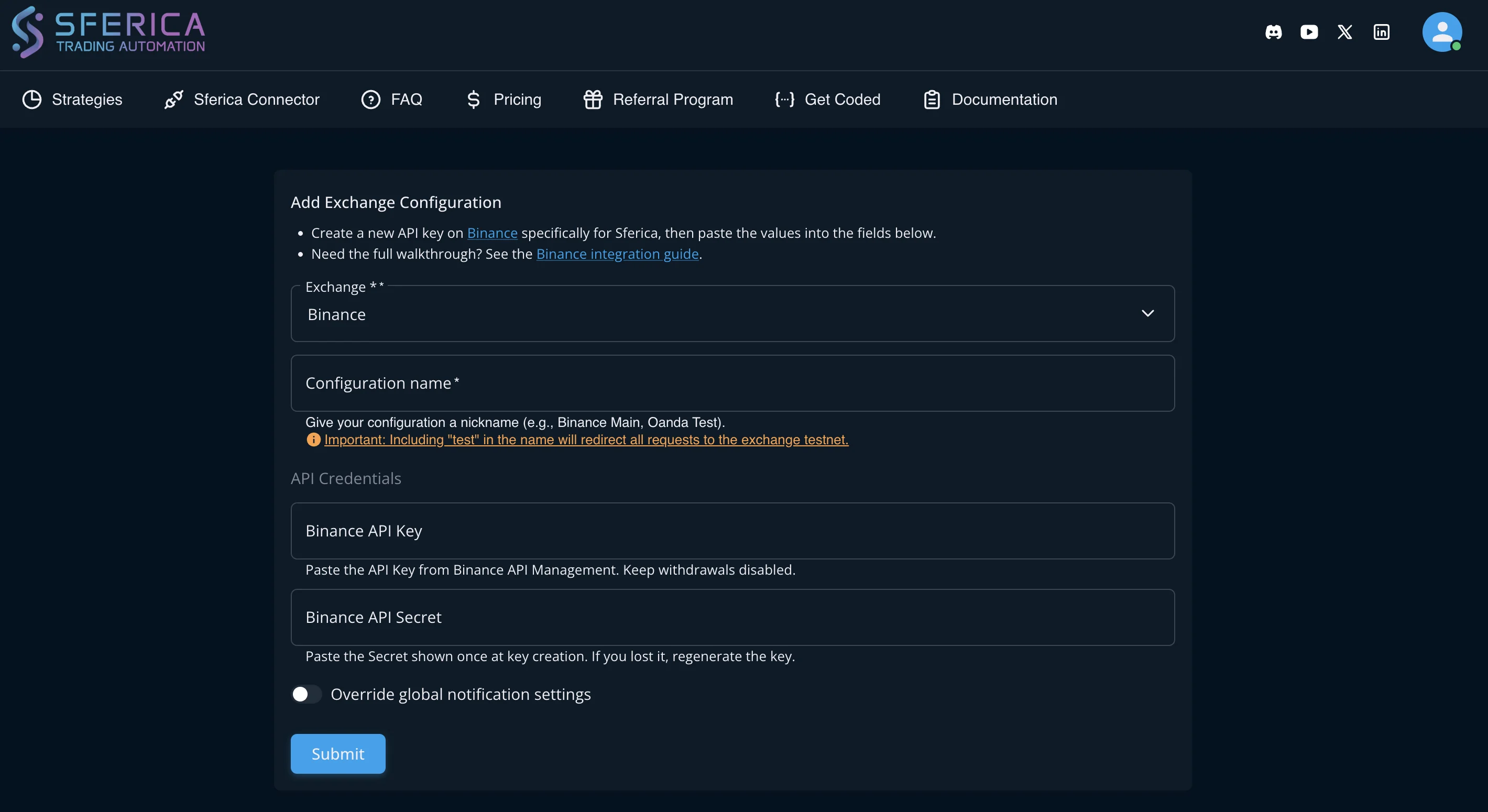 Sferica's "Add Exchange Configuration" form for a Binance connector. Pick the profile that matches your API key, paste the API Key and Secret, and save.
Paste the API Key and Secret from step 3 and save. Sferica runs a connection test against Binance to confirm the connector is live, then returns a unique pointer string — that pointer is what links your TradingView alerts to this Binance account. If you generated keys for more than one product, repeat the step for each; the connectors live side by side and never interfere.
Step 5 — Pick a strategy from the Sferica leaderboard
Goal: pick a strategy on the leaderboard that trades a Binance-compatible instrument and has enough live history to trust.
Open the leaderboard and filter by "Binance" in the broker column. You will see every strategy currently running on Binance accounts, ranked by live metrics — ROI, profit factor, consistency. Click into a strategy to see its full live trade history, its backtest report, and the supported broker connectors.
For your first bot, prefer a strategy with at least 90 days of live history and a profit factor above 1.5. Avoid the very top-ranked strategy if it has only a few weeks of data — recent winners can be variance, not skill.
Step 6 — Configure the TradingView alert
Goal: wire up the TradingView alert so the signal fires end-to-end whenever your chosen strategy enters or exits a position.
Each Sferica strategy ships with a TradingView alert template. Open the strategy in your TradingView chart, click the alert bell, paste the template Sferica provides into the alert message, and set the webhook URL (also shown on the strategy page) into the alert's Webhook URL field. Save.
From now on, every signal the strategy fires on TradingView hits the Sferica webhook, Sferica routes it to your Binance connector, and Binance executes.
Step 7 — Test on a small position
Goal: validate the full pipeline with a tiny trade before scaling. This is where misconfigured keys, wrong leverage, or bad alert messages surface — at minimum cost.
Before you scale to your full account size, run one or two trades at the smallest position size the strategy allows. This validates that the full pipeline — TradingView alert → Sferica webhook → Binance order — works with your specific API keys, account, and connector profile. Confirm the trade appears both in your Binance trade history and in the Sferica strategy log.
Step 8 — Activate and monitor
Goal: scale to target size and let the bot run, checking in often enough at first to catch any drift early.
Once the test trade(s) settle correctly, raise position size to your target level inside the strategy's risk configuration and let it run. Check the Sferica dashboard daily for the first week to spot any odd behaviour (failed orders, unexpected signals). After that, weekly monitoring is enough — the live-tracked leaderboard will flag any drift from expected performance.
How to set up Binance API keys safely
A compromised API key with trading permission can cost you money even without withdrawal access — for example, an attacker can pump-and-dump a low-liquidity asset against your account. So take the API key setup seriously.
Four rules (see also Binance's official API documentation for the permission-by-permission reference):
- Withdrawals must be disabled. Sferica never needs withdrawal permission. If your Binance key has it and the key ever leaks, an attacker can drain the account.
- IP-restrict the key if you can. If Sferica publishes its outbound IPs in your dashboard, paste them into Binance's IP whitelist. Binance will reject any API call from a different IP — a large jump in security for one minute of setup.
- Use the right permission scope. Enable Spot & Margin Trading only if you trade spot, Futures only if you trade futures. A key scoped narrowly can do less damage if it leaks.
- Rotate every 3 to 6 months. Even with everything locked down, periodic rotation is cheap insurance. Disabling the old key takes seconds inside Binance.
Bonus: enable an Anti-Phishing Code on your Binance account so that legitimate Binance emails carry your code and phishing attempts do not.
Configuring TradingView alerts for Binance automation
If you are using a Sferica-provided strategy, the alert template is given to you and you only need to paste it in. But if you are bringing your own Pine Script strategy, the message format matters.
Sferica expects a JSON payload with at minimum: a strategy identifier, the action (buy/sell/close), and the connector profile to route to. For the TradingView side of the wiring, the canonical reference is TradingView's official "About webhooks" guide. A typical USD-M futures alert looks like:
{
  "ticker" : "{{ticker}}",
  "action" : "{{strategy.order.action}}",
  "prev_position" : "{{strategy.prev_market_position}}",
  "quantity" : "{{strategy.order.contracts}}",
  "pointer" : "{{YOUR_POINTER}}"
}
For Spot, set the Exchange as "Binance" instead; for COIN-M, "Binance COIN-M", for USD-M, "Binance USD-M".The {{strategy.order.action}} and {{close}} placeholders are TradingView's built-in alert variables — TradingView substitutes them when the alert fires. The pointer field tells Sferica which configuration profile receives the order.
One alert per strategy, one webhook URL per Sferica account. Sferica de-duplicates alerts so a quick double-fire (which Pine Script strategies occasionally produce on bar close) does not result in a duplicate trade.
Testing your Binance trading bot before going live
Three layers of testing, in order:
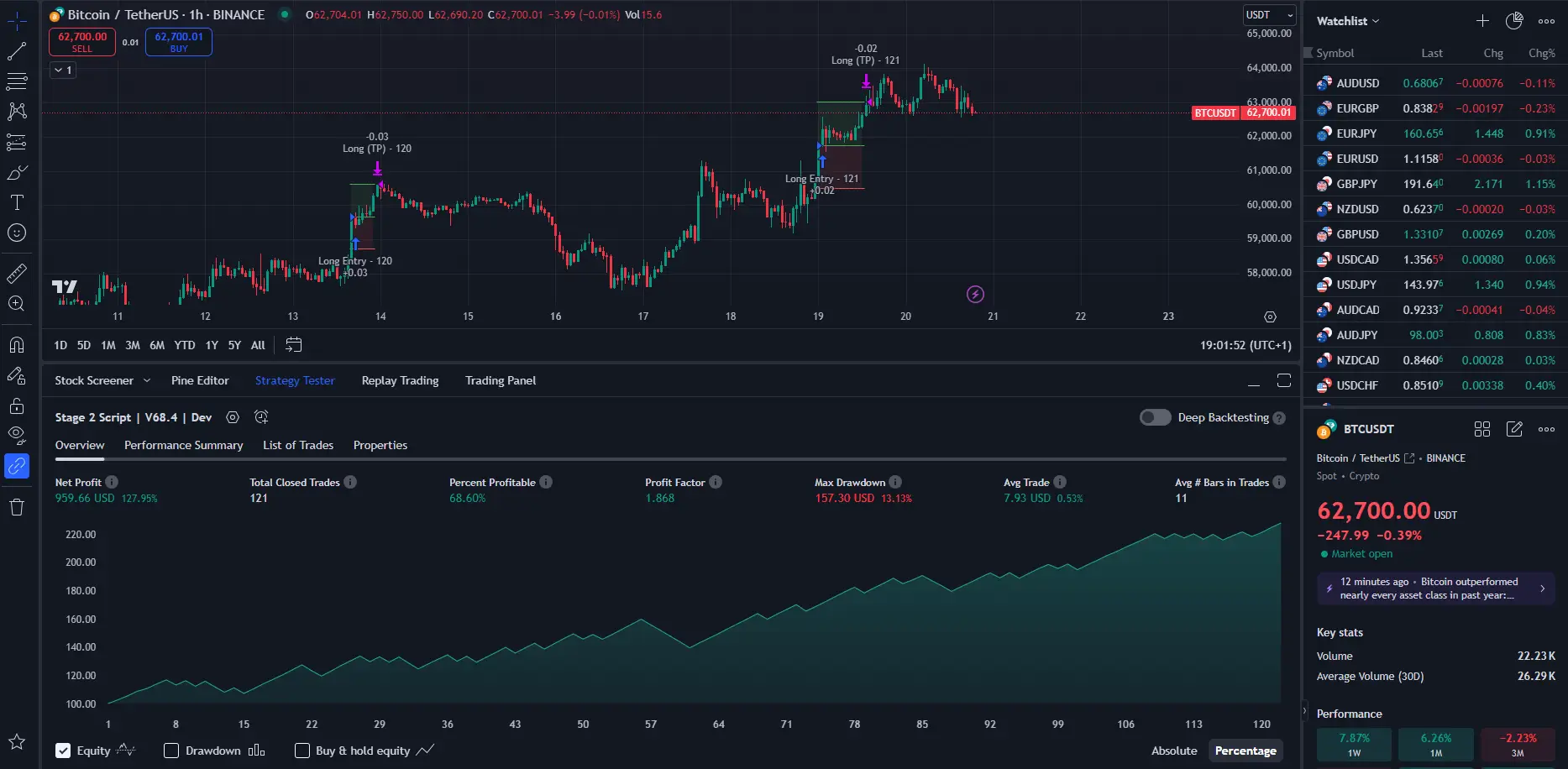
- Backtest on TradingView. The Pine Script strategy you are running ships with a backtest report in TradingView's Strategy Tester panel. Validate that the backtest numbers roughly match what is shown on the Sferica leaderboard — small differences are normal (slippage and fee modelling differ between TradingView's simulator and Binance's live fills), big gaps are a red flag.
- Paper-trade through TradingView. You can run the strategy on TradingView's paper-trading broker before connecting it to a real Binance account. This validates the strategy logic but does not validate Sferica's routing or Binance's execution.
- Live test on a small size. The only test that catches every layer is one or two real trades at the smallest position size the strategy allows. This is where misconfigured connectors, wrong API permissions, mismatched alert messages, or wrong leverage settings all surface — at minimum cost.
Do not skip the third step. Backtest-to-live gaps are real and they are almost always specific to your setup, not to the strategy.
Binance Spot vs Futures: which should you automate first
If you are new to algorithmic trading on Binance, start with Spot. It is the simpler product — no leverage, no margin mode, and the risk profile is bounded by the capital you put in. The API permissions are easier to reason about, and mean-reversion or trend-following strategies on major pairs are the natural first fit.
Once you have one Spot strategy running cleanly for two or three weeks and you are comfortable reading the Sferica logs, add a futures connector. USD-M (USDT-margined) is the more common starting point of the two futures products because the contracts are quoted and settled in USDT, which keeps the mental maths simple; COIN-M settles in the underlying coin and suits traders who want to accumulate BTC or ETH. Either way, futures open leverage, isolated and cross margin, and a separate balance pool — powerful for short-term strategies but unforgiving when miscalibrated. Cap leverage low (3x to 5x for the first month), use isolated margin until the strategy is proven, and never put the same capital behind a Spot and a futures strategy at the same time.
Binance trading bot risk management
Algorithmic trading does not change the underlying risk of holding crypto exposure. It only changes who pulls the trigger. The controls below matter most for a Binance bot specifically:
- Cap position size per trade. Sferica lets you set a fixed-dollar or percent-of-account size per strategy. Start low — 1% to 2% of the connector's allocated balance per trade — and only raise after 30 days of live data.
- Cap leverage per strategy on Futures. Binance Futures lets you take up to 125x on some pairs. Almost nothing in algorithmic trading requires more than 5x — beyond that a single bad bar can wipe the account. Sferica enforces the leverage cap on every order.
- Use isolated margin until the strategy is proven. Cross margin uses the entire account balance to fund a single position — efficient when the strategy works, catastrophic when it does not. Isolated caps the damage to the margin you assigned to that one trade.
- Set a daily-loss kill switch. Sferica's account-level kill switch pauses every strategy when the connector hits a configurable daily-loss threshold. Use it. Black-swan days happen.
- Watch correlation across strategies. Two strategies that look diversified on backtests can be highly correlated in live markets — especially in crypto, where most pairs move together during macro events. Sferica's portfolio view shows live correlation between active strategies.
- Isolate strategies with sub-accounts. If you plan to run more than two or three strategies on the same Binance account, create a sub-account per strategy or per strategy family. Each sub-account gets its own API key and Sferica connector, and the bookkeeping simplification pays for itself immediately.
Sferica versus Binance's native trading bots
Binance ships native bot products inside its app: Spot Grid, Futures Grid, Spot DCA, and a Rebalancing Bot. They are configured through templates — you pick parameters (grid range, step size, leverage) and Binance runs the logic server-side. They are useful for the use case they target: passive, range-bound markets where you want to take small profits from oscillation.
They are not a substitute for a TradingView-driven bot, for three reasons:
- No external signals. Native Binance bots cannot be triggered by a TradingView alert, a TrendSpider signal, or any custom logic you built outside Binance. They are isolated systems.
- No strategy authorship. You cannot read a native bot's internal logic, you cannot modify it, and you cannot port a strategy that worked elsewhere to Binance. You pick from Binance's templates.
- No cross-user transparency. Binance shows you your own bot's performance, but you cannot compare it against a population of other live runs of the same strategy — because the same strategy doesn't really exist outside your settings.
Sferica plus TradingView covers the opposite case: rules-based, signal-driven, fully transparent strategies you can read, backtest, and compare against live performance from other users. Run both side-by-side if you want — a native Binance grid on a quiet pair and a Sferica trend-following strategy on a major. They do not interfere.
Common Binance trading bot mistakes to avoid
The mistakes below come from real users in their first 30 days. None of them are theoretical:
- Going live without the small-size test trade. Skipping Step 7 above. A misconfigured alert can spam Binance with orders the moment the chart ticks.
- Granting withdrawal permission to the API key. Almost no Sferica user needs this, ever. If you did it by reflex, revoke and recreate the key with withdrawals disabled.
- Pasting a Spot key into a futures connector (or vice versa). Spot and futures permissions are enabled separately on the key. If the key lacks the permission the connector needs, the first test trade returns an error — check the permission scope before blaming the strategy.
- Running the same strategy on Spot and Futures at the same time. They will fight for the same capital and cancel each other's positions in unpredictable ways. Use one or the other, or use different sub-accounts.
- Picking the top-ranked strategy without checking live duration. Recent leaders can be variance. Filter by 90+ days live, profit factor above 1.5, and consistency above 60%.
- Forgetting Binance's rate limits. A custom Pine Script strategy that fires alerts on every bar can hit Binance's API rate limits. Sferica buffers and de-duplicates, but it cannot fix a fundamentally over-active strategy.
- Skipping sub-accounts. By the third strategy, bookkeeping on a single account gets noisy fast. Cheap to fix early, expensive to retrofit.
Next steps: try Sferica with Binance
Open a Binance account if you do not have one — Sferica's Binance referral signup keeps the connection recognised end-to-end — create a trading-only API key, then start the 14-day Sferica free trial. The full setup is genuinely under 10 minutes for the first connector. Full technical details of what Sferica supports on each Binance product live on the Binance integration page.
If you want to explore other broker integrations first, the full directory is at Sferica integrations — Bybit, Kraken, MetaTrader 4, MetaTrader 5, OANDA, and more are all covered with the same no-code pipeline. And if you would rather see what is actually trading live before committing to anything, the live performance leaderboard updates daily with every strategy on the platform.
Trading involves risk. Past performance is not indicative of future results. Read Sferica's risk disclosures before you allocate capital to any strategy.
Frequently Asked Questions
Do I need to know how to code to build a Binance trading bot with Sferica?
No. Sferica is a no-code automation layer between your trading signals and Binance. You pick a strategy from the Sferica leaderboard (or bring your own TradingView script), generate a Binance API key, paste it into a connector, and Sferica handles every alert that fires afterwards. The only mildly technical step is generating the API key inside Binance, and Binance has a guided flow for that.
Can I use my existing Binance account, or do I need a new one?
You use your existing Binance account. Sferica connects via API keys that you generate inside your own Binance API management panel. Funds, balances, and trade history stay in your account — Sferica never has custody. If you do not have a Binance account yet, opening one through Sferica's referral keeps the platform connection recognised end-to-end.
Are Binance Spot, USD-M Futures, COIN-M Futures, and Binance.US all supported?
Yes. They are four separate connector profiles inside your Sferica dashboard, each with its own API credentials and its own strategies. You can run them in parallel — for example, a trend-following strategy on USD-M Futures and a mean-reversion strategy on Spot — without them interfering with each other.
How do I handle leverage safely on Binance Futures?
Leverage is set per strategy in Sferica, not per account, so each strategy operates within its own risk envelope. You should also cap notional exposure per trade in the strategy's risk configuration and start with isolated margin until you understand how the strategy behaves on live markets. Cross margin is supported but should be reserved for strategies you have already validated.
Can I run multiple Binance strategies in parallel on the same account?
Yes, with a caveat. Sferica runs each strategy as an independent connector instance, so the orchestration is clean. But on the Binance side, all strategies on the same account share the same balance and (for futures) the same margin pool. If two strategies both try to maximise position size, they can compete for capital. Use sub-accounts to isolate strategies that should never touch each other.
What happens if my TradingView alert fires while I am asleep or offline?
Nothing changes — the bot keeps running. TradingView fires alerts on its own servers, Sferica receives them on its own servers, and the order routes to Binance through its API. Your laptop being on or off has no effect. This is one of the main reasons people automate in the first place.
Are Binance API keys safe to store in Sferica?
Sferica stores Binance API keys encrypted at rest and only decrypts them in-process at order-execution time. The recommended setup is to create the API key with trading permission only — leave withdrawal disabled. If anything ever looks wrong, you can revoke the key inside Binance and the connector stops being able to place orders within seconds.
Can I cancel my Sferica subscription anytime?
Yes. Plan management is handled by Stripe and you can cancel at any time from your Sferica dashboard. Cancelling stops billing at the end of the current period and disables active strategies; your Binance API keys remain in your control either way.
Ready to Automate Your Trading?
Explore our plans and start your 14-day free trial today.
View PricingTable of Contents
- What is a Binance trading bot
- How a Binance bot works with TradingView and Sferica
- 1. TradingView creates the signal
- 2. Sferica receives and processes the alert
- 3. Binance receives the order through API
- Why Sferica + Binance
- Prerequisites: what you need before starting
- Step-by-step: build your Binance trading bot in 8 steps
- Step 1 — Open or sign in to your Binance account
- Step 2 — Decide which Binance product to automate
- Step 3 — Create a trading-only API key
- Step 4 — Connect Binance to Sferica
- Step 5 — Pick a strategy from the Sferica leaderboard
- Step 6 — Configure the TradingView alert
- Step 7 — Test on a small position
- Step 8 — Activate and monitor
- How to set up Binance API keys safely
- Configuring TradingView alerts for Binance automation
- Testing your Binance trading bot before going live
- Binance Spot vs Futures: which should you automate first
- Binance trading bot risk management
- Sferica versus Binance's native trading bots
- Common Binance trading bot mistakes to avoid
- Next steps: try Sferica with Binance